Breaking news moves fast, and so does the internet. Headlines get rewritten, social posts get deleted, live blogs are updated every few minutes and official statements quietly change. If you follow the news closely, whether you’re a reporter, a student, a researcher or someone who just likes to keep receipts, sooner or later you’ll want a reliable record of what a page said at a specific moment.
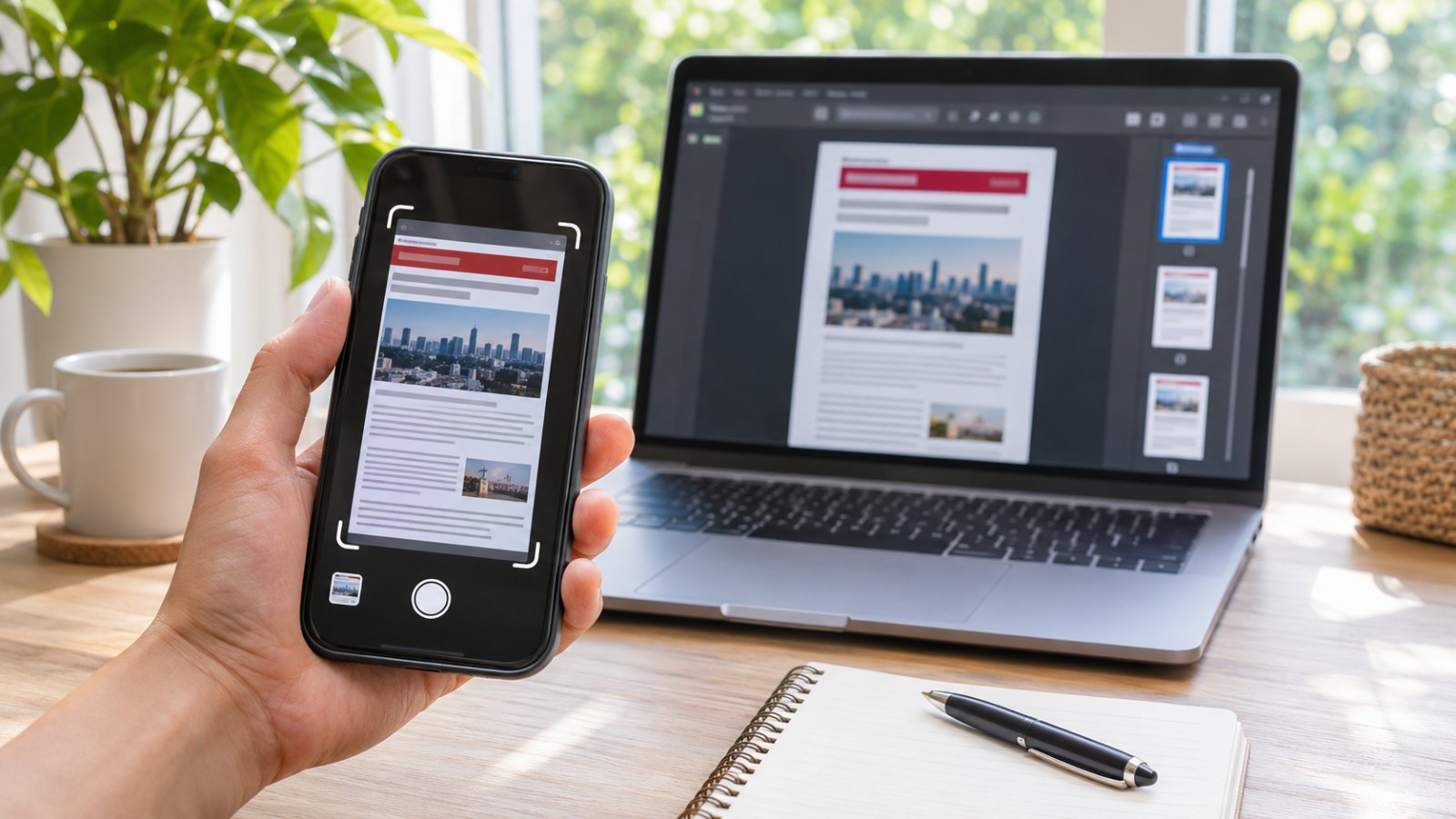
Screenshots are the quickest way to capture that moment. The problem is what happens afterward: dozens of image files scattered across your phone and computer, some saved in a format called JFIF that half your apps won’t open. Here’s how to turn screenshots and saved news images into a clean, dated PDF you can actually use.
Why save news as a PDF at all?
Bookmarks and links aren’t records. Pages move behind paywalls, get corrected or disappear entirely. A PDF archive gives you:
- A fixed record. The content can’t change after you save it.
- One file instead of fifty. A day’s worth of screenshots on a story can live in a single document, in order.
- Easy sharing. A PDF opens on any phone or computer and can be attached to an email, a class assignment or a report.
- Searchability. With text recognition, you can search your archive for names, places and quotes later.
The JFIF mystery, explained
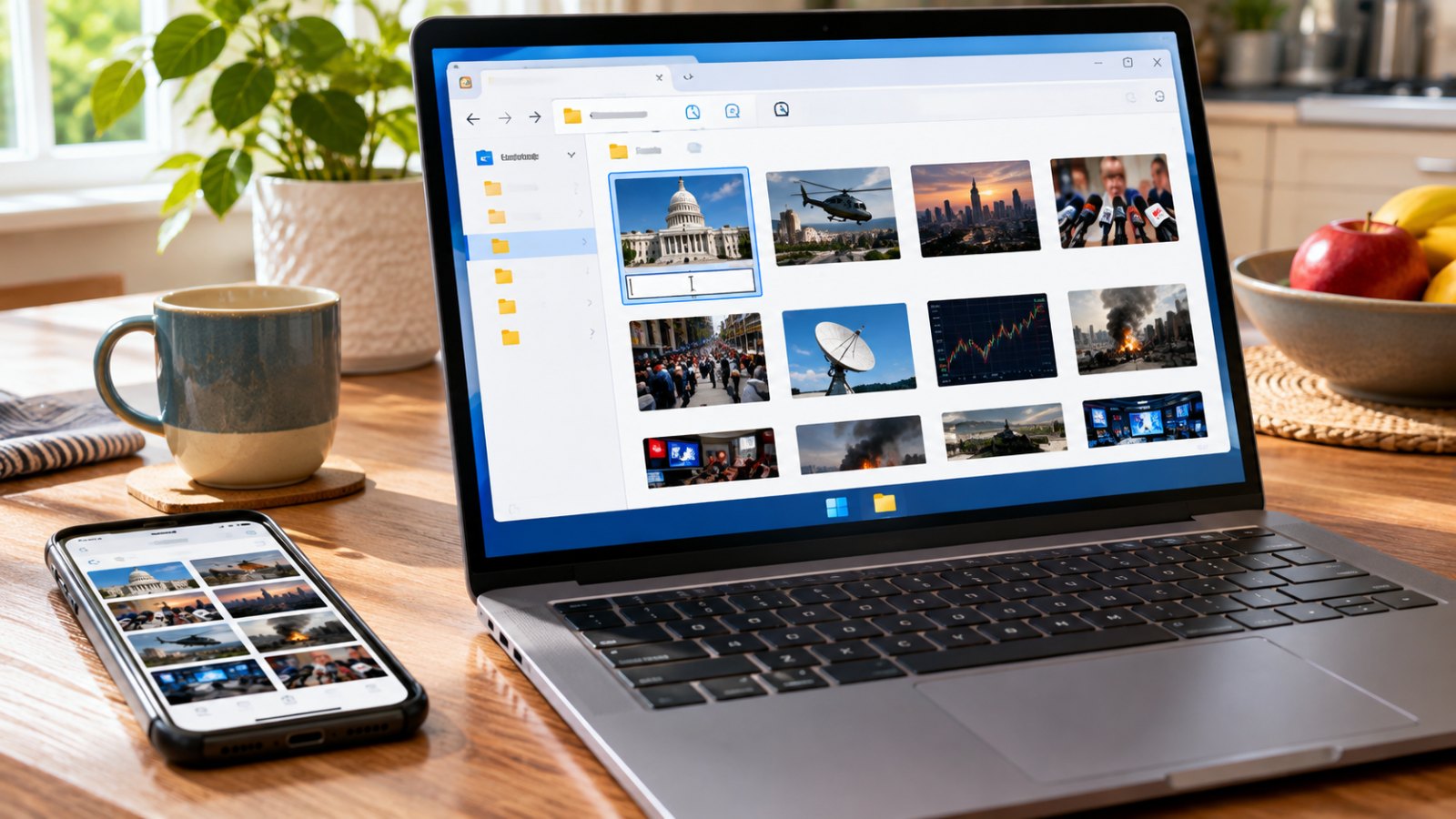
If you use Windows, you may have noticed that images you save from news sites sometimes end up with a .jfif extension instead of .jpg. You haven’t downloaded anything strange. JFIF (JPEG File Interchange Format) is simply the standard way JPEG images are stored. The image is a JPEG.
What changes is the label. On some Windows computers, a system setting maps JPEG images to the .jfif extension, so when you right-click a photo on a website and choose “Save image as,” Windows names it .jfif. The picture is the same, but some apps, upload forms and older software refuse to open the file because they don’t recognize the extension.
You have two easy fixes:
- Rename the file. Change the extension from .jfif to .jpg. Because the image is already a JPEG, it will usually open normally.
- Convert it straight to PDF. If you’re building an archive anyway, skip the renaming and convert JFIF to PDF directly, several images at a time.
Step 1: Take screenshots that will hold up later
A screenshot is only useful as a record if it shows enough context. Before you capture:
- Include the URL or the outlet’s name in the frame whenever possible.
- Capture the date and time. Many news pages show a timestamp near the headline. If not, include your device’s clock or note the time in the file name.
- Get the full headline and the key paragraph, not just a cropped quote.
- Use full-page capture for long articles. Most modern browsers and phones can capture an entire scrolling page in one image.
On Windows, the Snipping Tool (Windows key + Shift + S) saves screenshots as PNG files. On a Mac, Shift + Command + 4 lets you select an area. On iPhone and Android, the standard screenshot shortcut works, and both offer a “full page” option in the browser.
Step 2: Name and sort your files
Before converting, give your images names that sort in time order. A simple pattern works well:
2026-11-01_0915_outlet-headline.png
2026-11-01_1040_outlet-update.png
Starting with the date and time means your files line up chronologically, so your PDF reads like a timeline of how the story developed.
Step 3: Combine everything into one PDF
Once your images are sorted, put them in a single document. You can do this in several ways:
- On a Mac, select the images in Finder, open them in Preview, and choose File > Export as PDF.
- On Windows, select the images, right-click, choose Print, then pick “Microsoft Print to PDF” as the printer.
- In a browser, free online tools let you turn screenshots into a PDF on any device, including phones, without installing software. Upload the images, check the order and download one file.
Whichever method you use, open the finished PDF and scroll through it. Make sure nothing is cut off and the pages are in the right order.
Step 4: Add a cover note
For anything you might share or revisit, add a short first page that explains what the archive contains: the story, the date range, and where each capture came from. Future you will be grateful, and anyone you share the file with will understand it immediately.
Step 5: Store it somewhere safe
Keep your news archives in a dedicated cloud folder, organized by year and story. If a capture might matter later, for example in a dispute, a fact-check or academic work, keep the original image files alongside the PDF. Originals carry metadata (like when the file was created) that a PDF may not preserve.
A note on fair use and sharing
Saving news for your own reference, research or reporting is common and generally low-risk. Republishing someone else’s article or photos in full is a different matter. If you share your archive publicly, quote briefly, credit the original outlet and link to the source wherever you can.
Build the habit
The best time to save a record is the moment you see it. Make screenshotting part of how you follow big stories: capture, name, and drop the files into a folder. Once a day or once a week, convert that folder into a PDF. It takes a few minutes, and it means that when a headline changes or a post disappears, you’ll still have the version you saw.